

You already know which task you hate.
It is the one that feels like typing the same thing into two windows.
You have thought about fixing it, then run out of time.
This guide covers how to automate repetitive tasks, step by step, with one real build shown from the inside.
Automating repetitive tasks means handing the rule based parts of your week to software, so you only touch the work that needs a human.
The four steps that actually work
- Audit your week. Write down anything you do more than twice, like data entry, filing, and follow up messages.
- Pick one small win. Clear inputs, few exceptions. Not your messiest process.
- Choose a tool that fits. Built in features, a no code connector, a self hosted tool, or a script.
- Test it and measure it. Check the failure paths, then count the time you got back.
That order holds for any task. There is a full breakdown of workflow automation for small business if you want the wider view of what to tackle first.
The four kinds of tool
- Built in features. Gmail filters, Google Sheets rules, Windows Task Scheduler. Already paid for, and enough for a lot of simple jobs.
- No code connectors. Zapier and Make join apps together using triggers and actions. Fastest way to get something running.
- Self hosted workflow tools. n8n does the same job, but you run it and you own it.
- AI and scripts. For reading messy input, or for anything that needs full control and someone to maintain it.
Where most people get stuck
- Automating a process that is already broken
- Starting with the hardest task instead of the easiest
- Trusting a workflow that has never been tested against bad data
That last one is the expensive mistake.
Most people do not fail at automation because they picked the wrong app.
They fail because they built something once, watched it work on a clean example, and assumed it would keep working. Then it quietly stopped, and nobody noticed for three weeks.
The gap is not effort. It is that nobody shows you what a real one looks like once it is running, including the parts that go wrong.
So this walks through the whole process, and then through a real expense approval system built in n8n, including the bug found inside it while writing this.
What Is Task Automation?
Task automation is using software to do a repeating job for you, based on a trigger and a set of rules, without you clicking anything.
A task qualifies when three things are true.
It repeats on some kind of signal, like a form being filled in or a date arriving. The steps stay the same every time. And no judgement is needed to finish it.
Miss any one of those and you do not have a task to automate yet.
You have a decision that happens to repeat.
That distinction matters more than the tool you pick.
Filing an invoice in the same folder every month is repetitive work. Deciding whether to approve a strange looking invoice is not.
The first one is a rule. The second is a judgement call that only looks like a rule from a distance.
Most routine tasks in a small business sit somewhere in the middle. Part of the job is mechanical and part of it needs a person.
The trick is splitting them, which is what the rest of this covers.
Good to Know. You do not have to automate a whole job. Automating the boring 80% of one task and leaving the last 20% to a human is usually faster to build and safer to run.
Step 1: Find the Tasks Worth Automating
Start by tracking one normal week and writing down anything you do more than twice.
Do not plan. Do not think about which tasks are automatable yet.
Just write what you actually did, with a rough time next to it.
Most people are surprised twice. Once by how many small jobs they repeat, and once by how much time three minute tasks add up to when they happen daily.
After a week, go back through the list and look for these signals.
You copy data from one place to another. Reading a value off one screen and typing it into another is the clearest sign of all. The computer already has the data, and you are being the cable between two systems.
You send the same message with small changes. Confirmation emails, chase ups, weekly updates. If you have a mental template, that template can be a real one.
You rename, sort, or file things. Downloads going into folders. Attachments getting saved. Invoices getting logged.
You re-type something that already exists somewhere. Order numbers, addresses, amounts. Anything you read off one document and enter into another.
You check something on a schedule. Opening a dashboard every morning to see whether a number changed is a job for a machine. It should only interrupt you when the answer matters.
Rank what you find by frequency first, not by how annoying it is.
A dull two minute job you do fifteen times a week is worth more than a painful one hour job you do once a month.
[Image pending: A filled in task audit table from a real week, at the end of this section.]
The tasks that are not worth it
Some things look automatable and are not worth the build.
Anything you do less than monthly usually costs more time to automate than it will ever give back.
Anything with lots of exceptions will need so many rules that you end up maintaining a small application.
And anything where the value is the human attention, like a thank you note to a good customer, should stay manual.
Step 2: Pick the One to Start With
Pick the most boring task on your list with the fewest exceptions, not the one causing you the most pain.
This feels backwards.
The painful task is the one you want gone. But it is usually painful because it is complicated, and complicated is the worst place to learn.
Your first automation is teaching you the tool. Make it something you can finish.
A good first pick has clear inputs, a small number of steps, and an obvious right answer every time.
If you can describe the whole thing in one sentence without saying “unless”, it is a good candidate.
What to automate first, and what to leave alone
| Good first pick | Leave it for now |
|---|---|
| Runs daily or weekly | Runs a few times a year |
| Same steps every time | Full of special cases |
| Clear inputs from one place | Inputs scattered across people and inboxes |
| A wrong result is easy to spot and fix | A wrong result is expensive or invisible |
| Nobody will argue about it changing | Somebody is attached to the current way |
That last row catches people out.
A technically simple automation can still fail if it changes how someone likes to work and nobody asked them first.
What not to automate
Do not automate a process that is broken.
Automation makes a process faster, not better.
If your invoice approval is confusing, automating it gives you confusing approvals at higher speed. Now they are also harder to inspect, because they happen without you watching.
Fix the process on paper first. Then automate the fixed version.
Also leave anything needing real judgement alone, at least at the start.
You can automate the gathering and the routing around a decision while leaving the decision itself with a person. That is usually where the best return is anyway.
Step 3: Map It Before You Build It
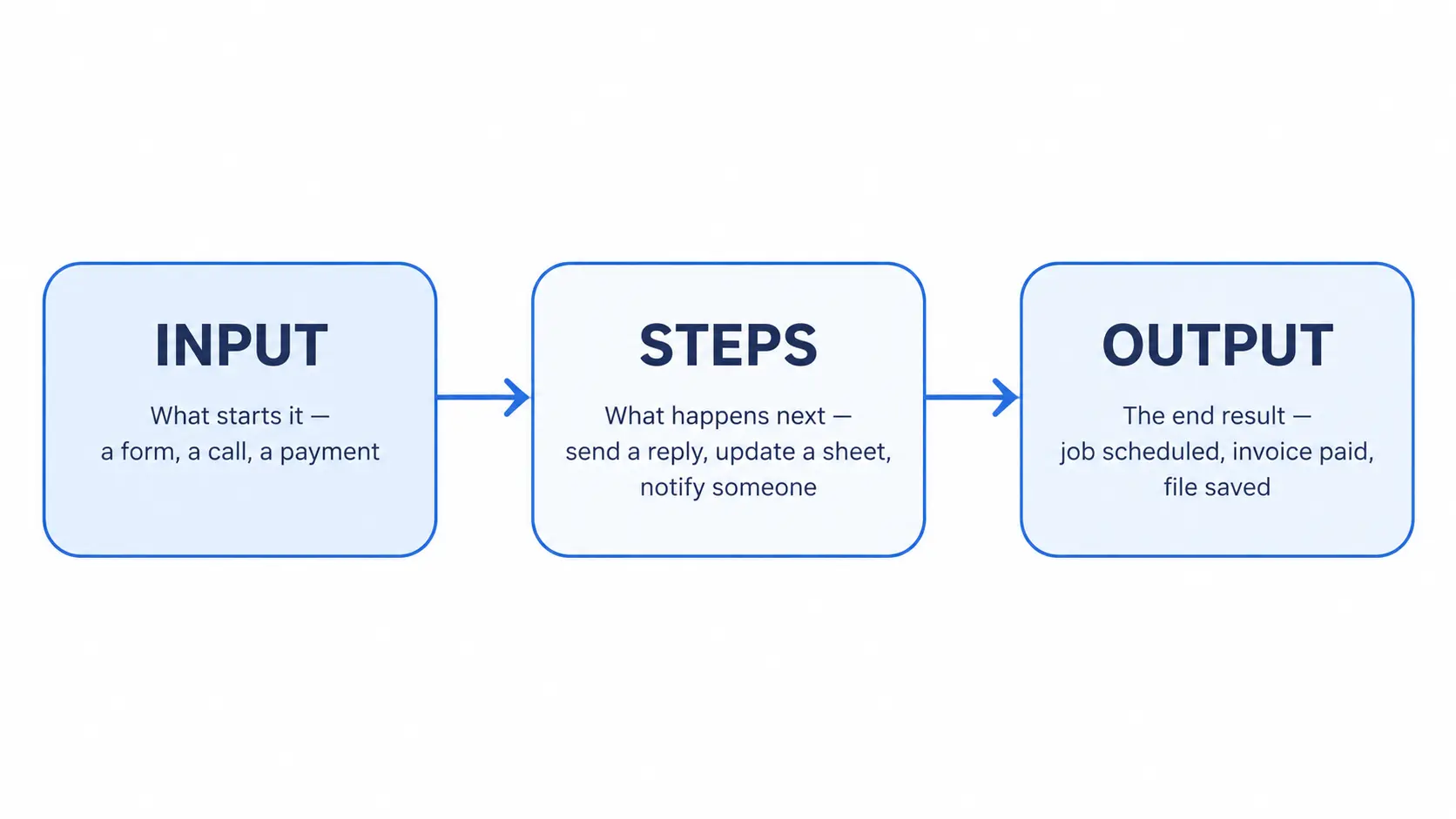
Write the task down as input, steps, and output before you open any tool.
This takes about ten minutes and saves hours.
Most failed automations are failed maps, not failed builds.
Start with what sets it off. Then list every step, in order, in plain language. Then write what the finished state looks like.
For the expense approval system covered further down, the map looked like this.
Input. Someone fills in a form asking to buy something. They type the amount and upload a photo of the receipt.
Steps. Save the request. Check it is new. Read the amount off the receipt photo. Compare that amount to what the person typed. If they match and the amount is small, approve it. If not, send it to a manager. Record what was decided. Tell the person the answer.
Output. A logged decision, and an email to whoever asked.
Writing it out that way does two things.
It shows you the steps you were skipping in your head. And it shows you where something could go wrong, which is where your testing will focus later.
Pro Tip. If you cannot write the map without using the word “usually”, stop. That word is hiding an exception, and exceptions are where automations break.
Step 4: Tools to Automate Repetitive Tasks
There is no single best tool. There are four routes, and the right one depends on what the task touches and how much you want to own.
Built in features are the ones already inside software you pay for. Gmail filters. Google Sheets rules. Windows Task Scheduler.
They cost nothing extra and they handle a surprising amount of simple work.
No code connectors like Zapier and Make join apps together with triggers and actions. You build by picking from menus.
They are the fastest way to get something running, and the easiest to hand to someone non technical.
Self hosted workflow tools like n8n do the same job, but you run them yourself.
More setup at the start, and you own what you build.
Scripts in Python, PowerShell, or AutoHotkey give you total control and no limits. They need someone who can write and maintain code.
| Route | Best for | Cost shape | Who owns it |
|---|---|---|---|
| Built in features | Single app jobs, filing, reminders | Already paid for | The software vendor |
| No code connectors | Joining two or three apps fast | Monthly, usually per task run | The platform |
| Self hosted tools | Multi step work you want to keep | Hosting only | You |
| Scripts | Anything, with no guard rails | Developer time | You |
The cost question matters more than it looks at first.
Connector platforms usually charge by how many times your automations run. That is fine when you have one automation.
When you have fifteen and they fire on every form submission, the bill grows with your business rather than with the value you get.
Self hosted tools move that cost to a fixed hosting fee. The trade is that you are responsible when something breaks.
Recommended. Start with built in features. Move to a no code connector when you need to join apps.
Only self host once you have enough automations that the monthly cost is annoying, or you need to keep the data in house.
How to Automate Tasks With AI
AI is useful for one specific job inside an automation. It reads messy input and turns it into clean data.
That is the whole thing. It is not the automation, it is one step inside it.
Rules handle anything with a fixed shape. A date in the same cell. A number in the same field.
You do not need AI for that, and using it there makes your workflow slower and less predictable.
Where rules fall apart is unstructured input. A photo of a crumpled receipt. An email written by a person. A form where somebody typed the whole story into one box.
AI can pull structure out of all three, which rules cannot.
Good fit for AI
- Reading a receipt or invoice photo
- Pulling details out of a free text message
- Sorting incoming requests into categories
- Summarising something long into something short
Bad fit for AI
- Doing maths you could do with a formula
- Deciding anything where being wrong is expensive
- Any step that must produce exactly the same answer every time
That last point is the one people learn the hard way.
An AI step is not guaranteed to give you the same answer twice. The same receipt can produce a slightly different total across two runs, because the model is predicting rather than matching.
A rule reads what is there, or returns nothing. A model fills in what it expects to see.
That behaviour is worth understanding. When the model cannot read a field clearly, it often guesses the most likely value rather than admitting it does not know.
If a supplier name is half smudged, it may quietly return the supplier it thinks you meant.
The accuracy numbers back this up. Researchers benchmarking invoice processing found that when a strong model reads a scanned receipt image directly, it gets around 87% of them right, and around 93% for cleaner invoices.
Handing that same model text which had already been parsed by a small tool first dropped the score to 47% on receipts.
Two lessons sit inside those numbers.
How you give the document to the model matters more than which model you choose. And even the best result leaves roughly one receipt in eight with something wrong in it.
One in eight is fine when a human checks the output. It is a disaster when the automation pays the invoice.
Important. Never let an AI step be the last word. Put a rule based check behind it. Required fields present, amounts that add up, a value that actually appears in the source document. Then send anything failing that check to a person.
Can ChatGPT automate tasks?
Not on its own, in the way most people mean.
ChatGPT is good at the reading and writing step. It does not sit and watch your inbox for new mail, and it does not reach into your accounting software to file something.
An automation needs a trigger, access to your systems, and something that runs while you are asleep. A chat window has none of those by default.
The practical answer is to use a model as one step inside a workflow tool. The workflow watches for the trigger and talks to your apps, and the model does the reading.
Step 5: Build It Without Writing Code
Here is what one looks like built, using an expense approval system running in n8n.
The task it replaces is small and common. Someone wants to buy something, so they ask.
Somebody then checks the receipt and the amount, decides yes or no, records it, and tells them.
What it does, step by step
The system checks a Google Sheet every minute for new form submissions. The form is where people send requests, and every submission lands as a row.
New rows get pulled out and checked. Anything already handled is skipped, so the same request never gets processed twice.
Each request then gets parsed and validated. This is the boring but important part, where the system confirms the fields it needs are actually there before anything else runs.
Next comes the receipt. The uploaded photo gets downloaded, then scanned by Google Cloud Vision, which reads the amount off it.
That amount gets compared against what the person typed into the form. This is the check that catches both honest typos and the other kind.
Then the decision splits. Requests under a set amount get approved automatically, logged, and confirmed by email.
Anything above that amount gets logged as pending and sent to a manager in Slack.
When the manager taps approve or reject, a webhook catches the answer. The system finds the original request, records the decision, updates the Slack message so nobody is left guessing, and emails the person who asked.
Two smaller paths handle the awkward cases. One catches errors anywhere in the flow and emails an admin, and the other handles a decision arriving for a request that cannot be found.
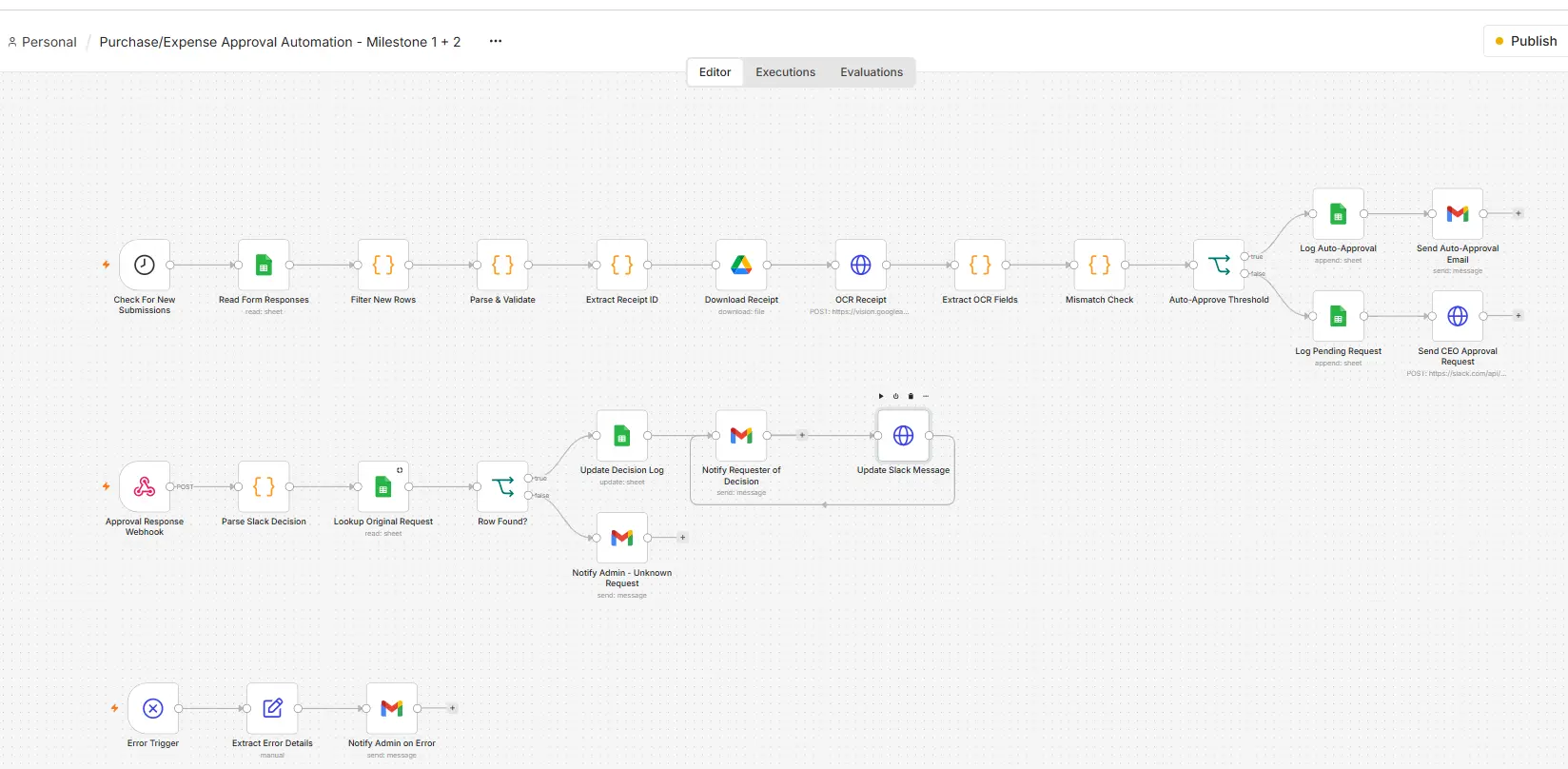

None of that needed code in the traditional sense. It is twenty five blocks joined in a specific order, and most of the work was deciding the order rather than building it.
The useful part is the shape, not the specific tool. A form feeds a log. The log gets checked. Messy input gets read. A rule decides who handles it. The answer gets recorded and sent back.
Swap the expense request for a leave request, a purchase order, or a client intake form, and the shape holds.
Step 6: Test It Before You Trust It
Test the failure paths, not the happy path.
The happy path almost always works, because it is the one you built while watching. What breaks in real use is everything you did not picture.
Run these checks before you let an automation touch anything important.
Send it an empty field. Leave a required box blank and submit. A lot of automations only fail three steps later, which makes the real cause hard to find.
Send it the wrong type. A word where a number should be. A photo where a PDF was expected. See what happens.
Send two at once. Submit twice quickly. If both runs read and write the same row, you can get duplicates or lose one of them entirely.
Break the connection on purpose. Disconnect an account and watch what the system does. You want it to shout, not to fail quietly.
Check it did the real thing. Not that the run went green. Open the sheet and confirm the row exists. Open the inbox and confirm the email arrived.
That last check catches the worst category of failure.
What Actually Broke
The receipt reading in that system was never connected to anything.
Three blocks do that job. Download the photo, scan it, pull out the amount.
They were built, configured, and sitting in the workflow.
Nothing fed into them. The step before jumped straight past to the comparison check.
That was only caught by opening the live workflow and reading the connections one by one while writing this, rather than looking at the canvas and assuming it matched.
Here is the part worth saying honestly.
The rest of the system has actually run. Eleven real requests went through it in early September.
Small ones got approved automatically. Bigger ones went to a manager in Slack, and got a real approve or reject.
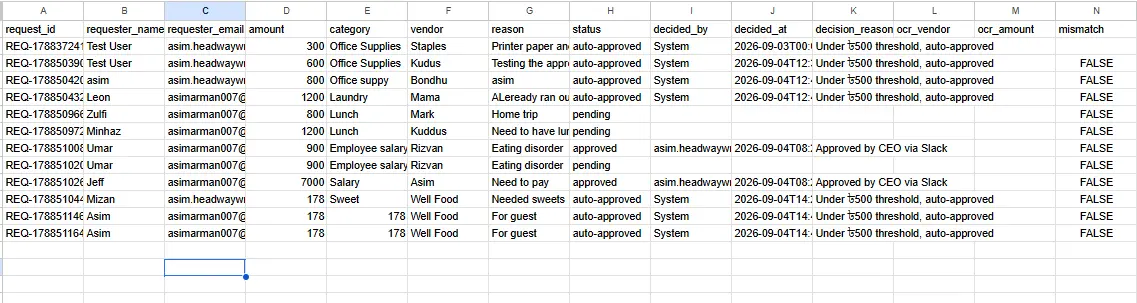
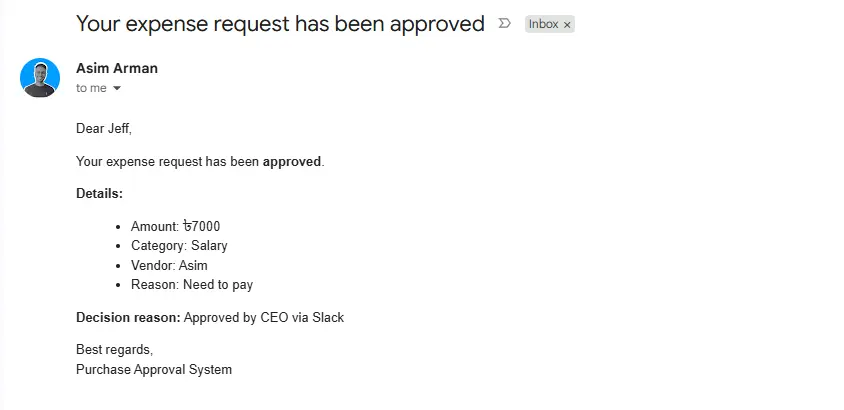
One of those was a real ৳7,000 request. It went over the automatic limit, so it waited for a person. The manager approved it in Slack, and an email went out two seconds later confirming it.
Another request went the other way. Same path, rejected instead, same speed.
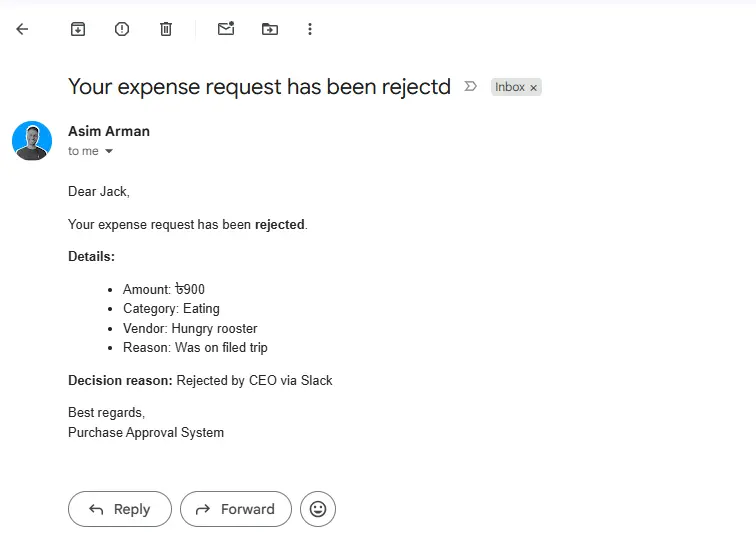
So the honest summary is this. The decision, the routing, the logging, and the email all work, and they have been tested with real requests, not a demo click.
The one piece that was never wired up is exactly the piece meant to read a receipt automatically. Everything downstream of that piece still has to be typed in by hand until it gets fixed.
Warning. A workflow that runs without errors and a workflow that does the whole job are two different things. Here, most of it was doing the job. One piece quietly was not, and nothing on the dashboard said so.
Step 7: Measure Whether It Worked
Compare the time the task took before against the time it takes now, multiplied by how often it happens.
Three numbers make the case. Minutes per run before automation, minutes per run after, and runs per month.
Most of the saving is usually not the minutes.
It is the delay removed, because a request no longer waits in somebody’s inbox until they notice it.
Measure the delay as well as the effort. For anything touching a customer or a colleague waiting on an answer, the wait is usually the expensive part.
Track one more number. How often the automation needed a human to step in.
If that climbs, your rules do not match reality as well as you thought, and the automation is quietly creating work somewhere else.
Doing It Yourself or Getting Help
Build it yourself when the task only touches tools you already control and a mistake is cheap to undo.
That covers most first automations, and doing one yourself teaches you more about your own process than any guide will.
| Do it yourself | Get help |
|---|---|
| One or two apps involved | Several systems that must stay in sync |
| A mistake is easy to spot and reverse | A mistake costs money or loses data |
| You have a few hours to learn the tool | The task is blocking something urgent |
| Nobody else depends on it yet | Other people’s work depends on it running |
The honest line sits at reversibility.
If a wrong result is visible and fixable in a minute, build it and learn. If a wrong result silently sends the wrong number into your accounts, that is a different level of care.
Key Takeaways: How to Automate Repetitive Tasks
- Track a real week before deciding anything. The tasks worth automating are rarely the ones you would have guessed.
- Pick the most boring task with the fewest exceptions first, not the most painful one.
- Write the map before you open a tool. Most failed automations are failed maps.
- Use AI for reading messy input only. Put a rule based check behind every AI step.
- Test the failure paths. The happy path already works.
- A green run means it did not crash. It does not mean it did anything.
Frequently Asked Questions
What does it mean to automate repetitive tasks?
It means setting up software to complete a repeating job for you when a trigger happens, using fixed rules, with no clicking from you. The task has to repeat on a signal, follow the same steps each time, and need no judgement.
What is the best software to automate repetitive tasks?
There is no single best one. Use built in features like Gmail filters for single app jobs. Use Zapier or Make to join apps quickly. Use n8n when you want to own the workflow and avoid per run fees. Use scripts when you need full control and have someone to maintain them.
How can AI automate repetitive tasks?
AI handles one step well, which is turning messy input into clean data. It reads receipts, emails, and free text, then returns structured fields. It should not make decisions or do maths a formula can do, and its output needs a rule based check behind it.
Can ChatGPT automate tasks?
Not by itself. ChatGPT has no trigger watching your systems and no standing access to your apps. Use it as one reading step inside a workflow tool, where the tool handles the trigger and the connections.
How long does the first automation take to set up?
A simple one joining two apps takes an afternoon, including testing. Most of that time goes on mapping the task and checking failure paths, not on building.
What happens when an automation breaks?
Usually it fails quietly. A login expires, an app changes a field name, or a run completes while doing nothing. Build an error path that emails you on failure, and check the real outcome rather than the run status.
Automation is not about doing more. It is about deciding once, writing it down properly, and never making that decision again by hand.
Start with the dullest thing on your list this week. Not the one that annoys you most, but the one you could explain to someone in a single sentence.
That one will teach you everything the complicated one would have, and you will actually finish it.