

Workflow automation for small business uses rule-based software, and increasingly AI, to run repetitive tasks without a person doing them by hand. Instead of you copying data, sending reminders, or replying to the same questions every day, a tool like Zapier, Make, or n8n does it automatically, every time, the same way. If you’d rather have this mapped and built for you, a workflow automation consultant can handle the setup end to end. If the term itself is still fuzzy, here’s what business automation actually means before we get into the how.
High-Impact Workflows to Automate First
- Lead Response and Qualification: Reply to new inquiries instantly, answer basic questions with AI, and book appointments before a competitor gets there first.
- Internal Data Syncing: Push new customer details from a form submission straight into your CRM or accounting software, so nobody re-types the same data twice.
- Invoicing and Reminders: Send payment links automatically and follow up on due dates without chasing anyone by hand.
Popular Automation Tools
- Zapier: Connects thousands of apps with simple, linear triggers and actions.
- Make: Uses a visual, mind-map style canvas for branching logic and more complex workflows.
- n8n: Self-hosted and flexible, with no strict per-task limits, which matters once you’re running more than one or two workflows.
If you’re reading this, you probably already know the feeling. You’re the one chasing invoices, copying leads from a form into a spreadsheet, and answering the same three questions from customers every week. It eats hours you don’t have, and every hour spent on it is an hour not spent growing the business.
The good news is you don’t need to be technical to fix this, and you don’t need a big budget either. You need to know what to automate first, how to build it without breaking things, and whether to do it yourself or bring in a workflow automation consultant to build it for you.
Why Workflow Automation for Small Business Matters
Repeat admin work quietly eats a huge share of the working week, and most owners never add it up until they see the number.
According to Sage, UK micro-businesses lose around 24 days a year to repetitive admin tasks like bookkeeping, invoicing, payroll, and scheduling. That’s close to a month of full working days spent on tasks a computer could do instead.
Airtasker reports that the average small business owner loses tens of thousands of dollars a year in lost value by doing office admin and bookkeeping themselves instead of freeing that time for higher-value work. Salesforce’s own research backs this up: nearly 75% of technical leaders who automate workflows report saving at least four hours a week, and Moxo found that knowledge workers spend close to 20% of their week on tasks that could be automated.
That’s the real cost of skipping automation. It’s not one big dramatic problem, it’s a dozen small ones stacking up every single week.
How to Automate Your Business: Map Your Workflow First
Before you touch any tool, write down exactly how one repeat task works today, from the first trigger to the final result. This mapping step is where real workflow automation for small business starts, before you ever open a tool.
Every workflow has three parts. The input is what starts it, like a form submission, a new email, or a payment coming in. The steps are everything that happens next, like sending a reply, updating a spreadsheet, or notifying a teammate. The output is the end result, like a scheduled job or a paid invoice.
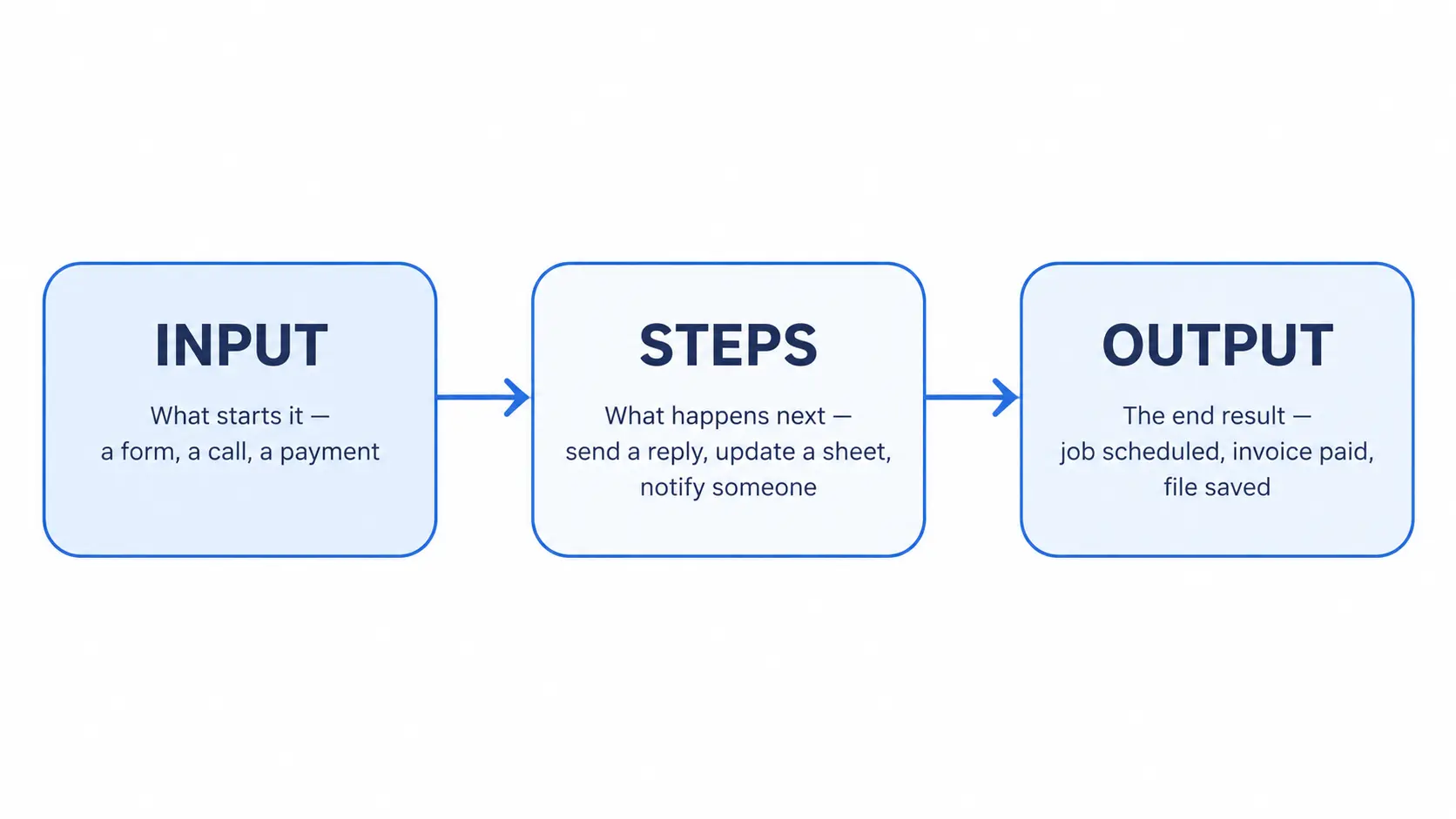
Once you’ve mapped a task this way, it’s much easier to see where automation actually helps. Look at your business across these four areas and note which tasks show up again and again.
- Sales and Marketing: following up with new leads, scheduling social posts, sending quotes
- Finance and Admin: sending invoices, chasing late payments, logging expenses
- Customer Service: answering repeat questions, routing support requests
- Onboarding: welcoming new clients, sending contracts, setting up their first job
For ready-made examples across each of these areas, see 10 small business automation ideas you can copy.
A task is worth automating if it meets any of these three signs: you do it the exact same way every time, it takes longer than it should, or mistakes tend to creep in when you’re rushed. If a task fails all three, leave it alone for now.
Quick Tip: Not sure if you’re ready to automate or if you need to fix the process first? Ask yourself if you could explain the task to a new employee in one sentence. If you can’t, the process needs fixing before any tool can help.
Here’s a trap almost nobody warns you about. Tools like Zapier and Make charge by the task or the operation, not by the workflow. Zapier’s free plan gives you 100 tasks a month, the Professional plan is $19.99 a month for 750 tasks, and the Team plan is $69 a month for 2,000 tasks. A single workflow with five steps uses five tasks every time it runs, so the count climbs fast once you have more than one or two automations going. Make works similarly: its Core plan is $12 a month for 10,000 operations, but once you go over that, you buy extra packs rather than jumping to a bigger flat rate.
This is exactly why we build most of our workflows in n8n. It’s self-hosted, so you pay a flat server cost no matter how many times your workflows run. For a business planning to automate more than one or two tasks, that difference adds up fast.
I Built This Live, Here’s What Broke
Most articles about automation talk in theory. Here’s an actual build, bugs included, so you can see what really happens.
We built a purchase and expense approval workflow in n8n as a demo. The idea was simple: someone submits an expense through a Google Form, and the system decides what happens next. Anything under ৳500 gets auto-approved instantly. Anything above that gets sent to the business owner over Slack, with approve and reject buttons built right into the message.
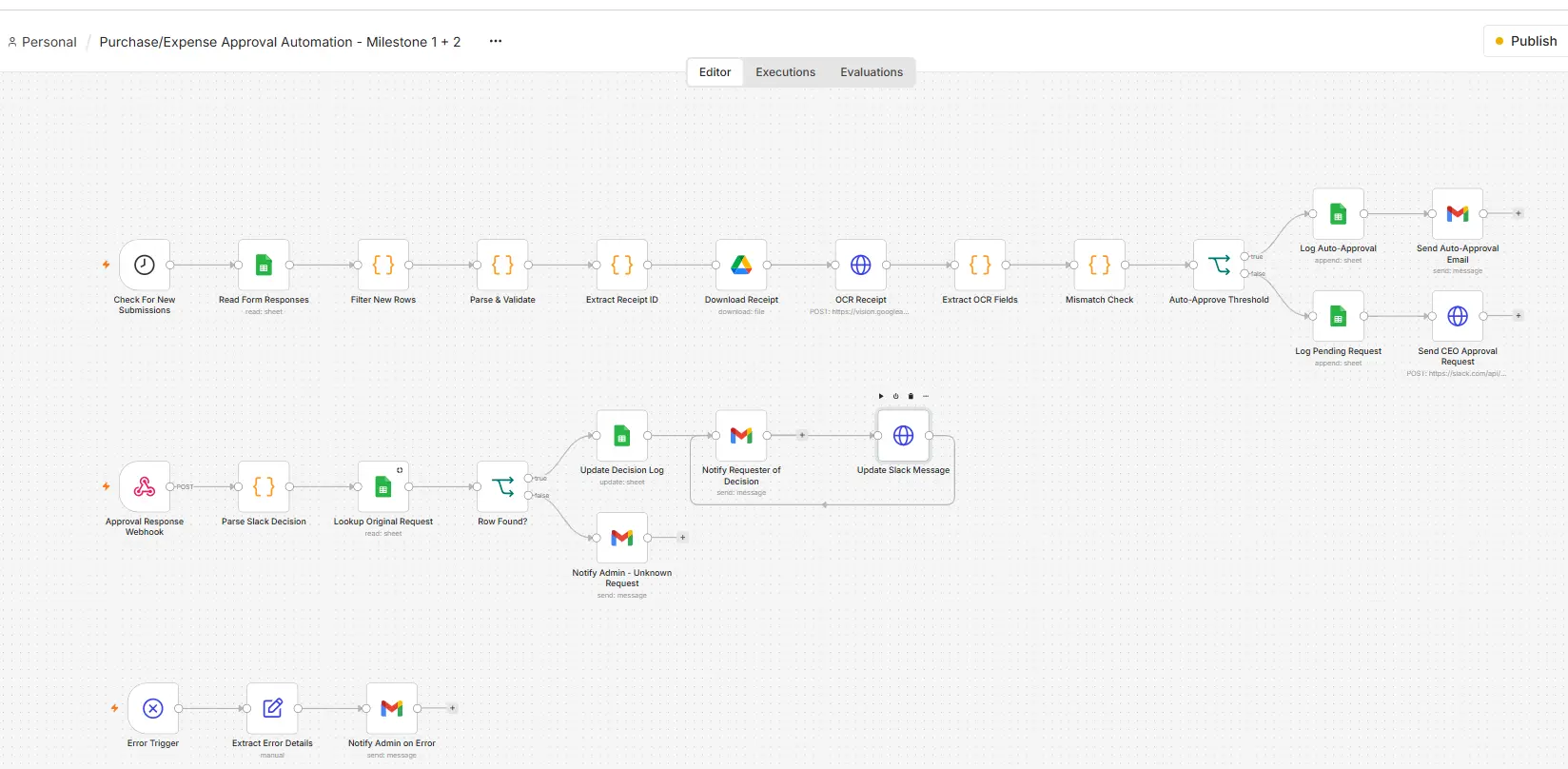
Once the owner taps approve in Slack, the message updates in place to confirm the decision.
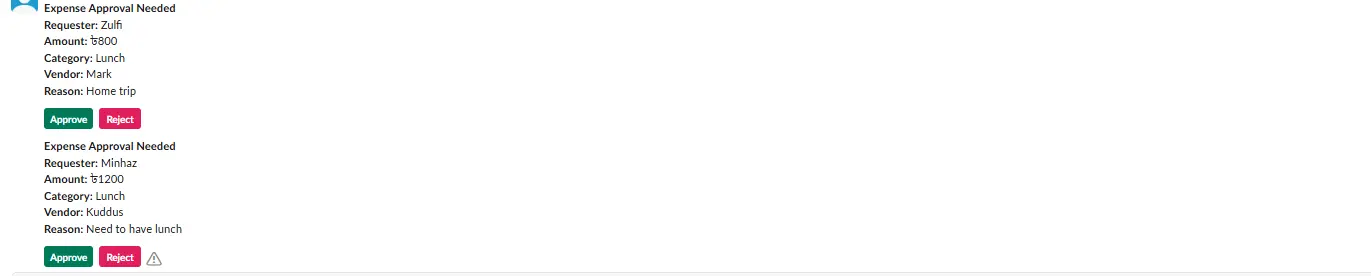
If the owner taps reject instead, the same message updates the other way, so there’s no confusion about what happened.
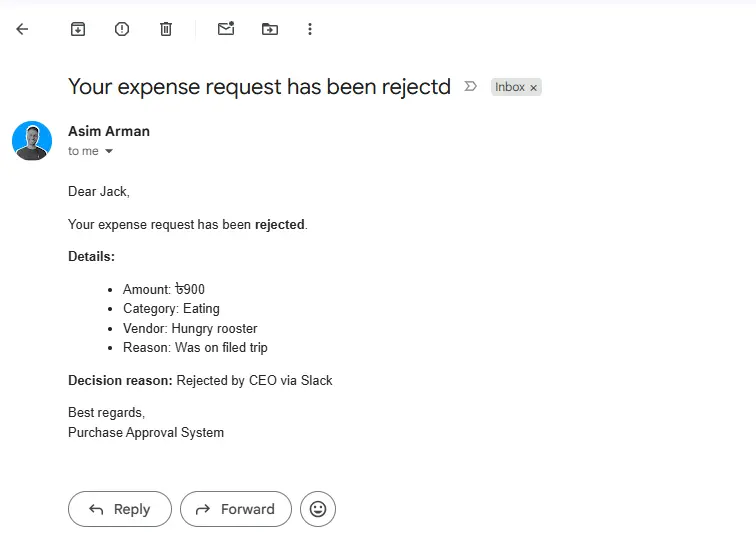
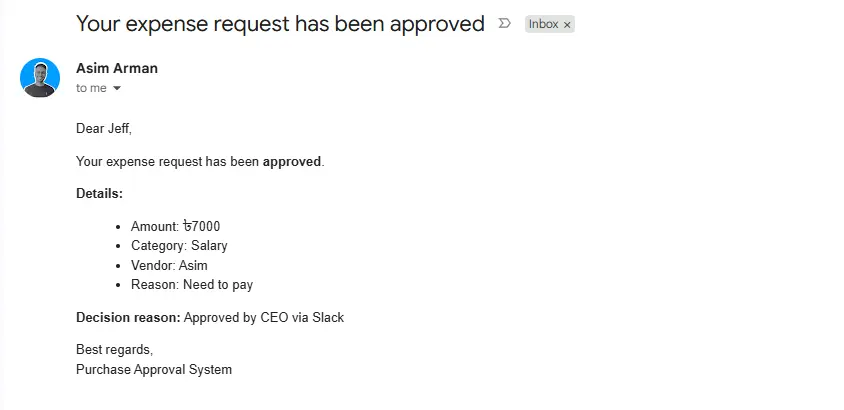
Either way, the person who submitted the expense gets an automatic email with the decision, so nobody has to chase anyone down to find out what happened to their claim.
Every decision also gets logged in a running sheet, so there’s a full record of what was submitted, who decided, and when.
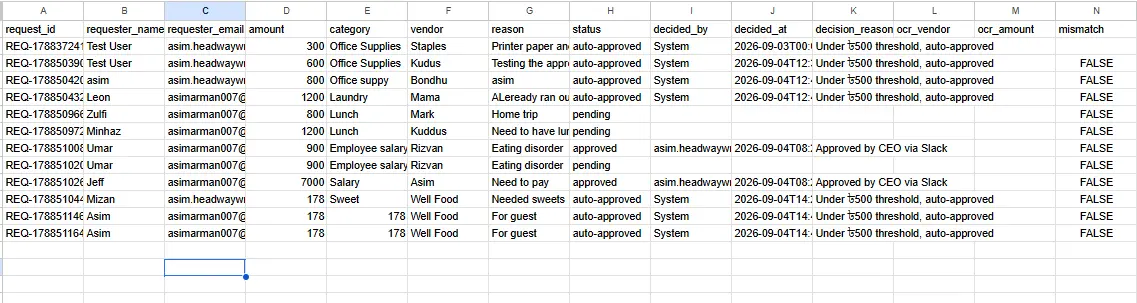
Here’s the part most people leave out of these posts. We originally planned a step where the system would scan the receipt image and check it against the amount entered, using Google Cloud Vision. That step never made it into the final build, because the billing wasn’t enabled on the Google Cloud project we used, and the mismatch-check kept failing because of it. So the workflow works exactly as described above, but it does not read or verify receipts. If you need that specific feature, it’s a real, solvable problem, just one this particular build didn’t get to.
Mistakes to Avoid When You Start Automating
A few mistakes show up again and again, and most of them are avoidable if you know to look for them.
Automating a broken process. If your current process is confusing or inconsistent, automating it just makes the mess happen faster. Fix the process on paper first, then automate the clean version.
Adding too many tools too early. Pick one workflow, get it running well, and only then move to the next one. Trying to automate five things in your first week usually means none of them get finished properly.
Skipping test mode. Always run a new automation in test mode before it goes live. An email that says “Hi first name” instead of the customer’s actual name looks unprofessional, and it’s an easy mistake to catch before anyone else sees it.
Automating the human parts. Customer complaints, sales conversations, and relationship-building still need a real person. Automate the boring, repeat parts of your business, and protect your time for the parts where a human touch actually matters.
Is Workflow Automation Reliable? Will It Replace My Team?
Automation handles the repeat, predictable parts of a task. It does not replace judgment, relationships, or the parts of your business that need a real conversation.
Think of it as removing the boring 80% of a job so your team can spend their time on the 20% that actually needs a person. A missed-call text-back doesn’t replace your receptionist, it makes sure no lead goes cold while your receptionist is busy with someone else. The businesses that get the most value from automation are the ones that keep a human in charge of decisions and let the system handle the repetitive legwork underneath.
How to Measure If Your Automation Worked
You don’t need fancy analytics to know if an automation is paying off. Track it the same simple way you’d track anything else in the business.
Before you turn it on, write down roughly how long the task takes you manually and how often mistakes happen. After a few weeks of running the automation, check the same two things again. If the task takes less of your time and mistakes have dropped, it’s working. If nothing’s changed, go back and look at whether the workflow actually matches how the task really happens, because a mismatch there is the most common reason automation doesn’t pay off.
DIY vs Hiring a Consultant
Whether to build this yourself or bring someone in usually comes down to your time, your budget, and how many workflows you actually need. Either path counts as real workflow automation for small business, the only question is who does the setup.
| Option | Monthly Cost | Setup Time | Who Maintains It | What Breaks |
|---|---|---|---|---|
| DIY – Zapier or Make | $0-$69+/mo, scales with task volume | A few hours to a weekend | You | Zaps or scenarios break silently when a connected app updates |
| DIY – n8n | Flat self-hosted server cost, roughly $5-20/mo | A weekend to a week, steeper learning curve | You | Errors need some technical troubleshooting to fix |
| Hire a Consultant | Project fee, plus an optional maintenance retainer | Days, built for you | The consultant | Rare, ongoing maintenance is already covered |
DIY with Zapier or Make suits a business with one or two simple workflows and someone willing to learn the tool. DIY with n8n suits a business planning several workflows and comfortable with a bit more of a learning curve, in exchange for a flatter, lower long-term cost. Hiring a workflow automation consultant suits a business that wants this built correctly the first time, without spending its own hours learning a new tool, and wants someone else responsible for fixing it when something changes.
Your Free Automation Audit Checklist
Here’s the shortcut to the mapping exercise above. Go through each area, and tick off any task that fits.
Sales and Marketing
- Following up new leads the same way every time
- Scheduling or writing social posts manually each week
- Sending quotes by copying the same template over and over
Finance and Admin
- Sending invoices manually for every job
- Chasing late payments one by one
- Logging expenses into a spreadsheet by hand
Customer Service
- Answering the same three or four questions every week
- Manually routing support requests to the right person
Onboarding
- Sending the same welcome email or contract every time
- Manually setting up a new client’s first job or file
If a task shows up on this list and also fails one of the three red-flag signs from earlier, same every time, takes too long, or error-prone, it’s your best candidate to automate first.
Frequently Asked Questions
What is the best workflow automation software for small businesses?
It depends on how many workflows you need and your budget. Zapier and Make are the easiest to start with for one or two simple automations. n8n is the better choice once you’re running several workflows, because its self-hosted pricing stays flat instead of climbing with every task you run.
Can ChatGPT create workflows?
Not on its own. ChatGPT can trigger outside actions through features like GPT Actions, or take steps in a browser through its Operator mode, but it doesn’t have real scheduling, branching logic, or the connector library that a dedicated automation tool like Zapier, Make, or n8n has. Think of it as a helper that can kick off a step, not a replacement for a workflow platform.
What are some good automations for small businesses?
The most common starting points are lead follow-up emails, invoice reminders, missed-call text-backs, and syncing new customer details from a form into a CRM or spreadsheet. All four are repetitive, easy to get wrong by hand, and quick to set up.
Does Microsoft 365 have a workflow tool?
Yes. It’s called Power Automate, and it’s part of the Microsoft Power Platform. Many Microsoft 365 business plans include a limited free tier with standard connectors and basic automations, while premium connectors and higher-volume automations need a separate Power Automate license.
Where to Start This Week
Pick one task you do the same way every week, the one that eats the most time or causes the most mistakes. Map it out using the input, steps, output framework above, then decide if it’s simple enough to build yourself in Zapier or Make, or worth setting up properly in n8n from the start.
Workflow automation for small business doesn’t have to mean an overhaul of everything you do. It means taking the one task that drains you the most and letting a system handle it instead, so your time goes back to the parts of the business only you can do.
Pingback: What Is Business Automation? A Plain-English Guide for Small Businesses
Pingback: 6 Proven Workflow Automation Benefits for Small Business (Most Owners Only Know Half)