

Whichever box you checked most, jump to that section below and start there.
10 Automation Ideas for Small Businesses
Each one below explains why it matters, what it actually does, and exactly how to set it up with the tools you probably already use.
| Task | Common Tool | What It Replaces |
|---|---|---|
| Lead follow-up & CRM updates | n8n, Zapier, HubSpot | Manually re-typing lead details after every call or form |
| Invoicing & payment reminders | QuickBooks, Xero | Chasing unpaid invoices by hand |
| Email marketing sequences | Make, ActiveCampaign | Sending each follow-up email one at a time |
| Appointment scheduling | Calendly, n8n | Back-and-forth booking emails |
| Social media posting | Buffer, Hootsuite | Logging into each platform separately to post |
| HR & employee onboarding | n8n, Zapier | Emailing a new hire a checklist and hoping they follow it |
| Inventory tracking & reordering | n8n, Zapier | Manually checking stock levels |
| Customer support & ticket routing | Zendesk, n8n | Reading and sorting every incoming message by hand |
| Reporting & dashboards | n8n, Google Sheets | Copy-pasting numbers from five tools into one report |
| Proposal & document generation | n8n, PandaDoc | Rebuilding every proposal from scratch |
No “time saved” numbers sit in this table, because none held up when we checked them against a real source. If you’ve measured your own before-and-after time, use that number instead of a guess.
1. Lead Follow-Up and CRM Updates
A lead who doesn’t hear back quickly goes to your competitor instead.
Following up by hand means someone has to remember every time, and that’s where leads slip through. Set this up and it fixes the problem on its own.
When a lead comes in through a form, a call, or a chat message, it writes itself into your CRM automatically, then fires off a set of timed follow-ups so nobody has to remember to send them.
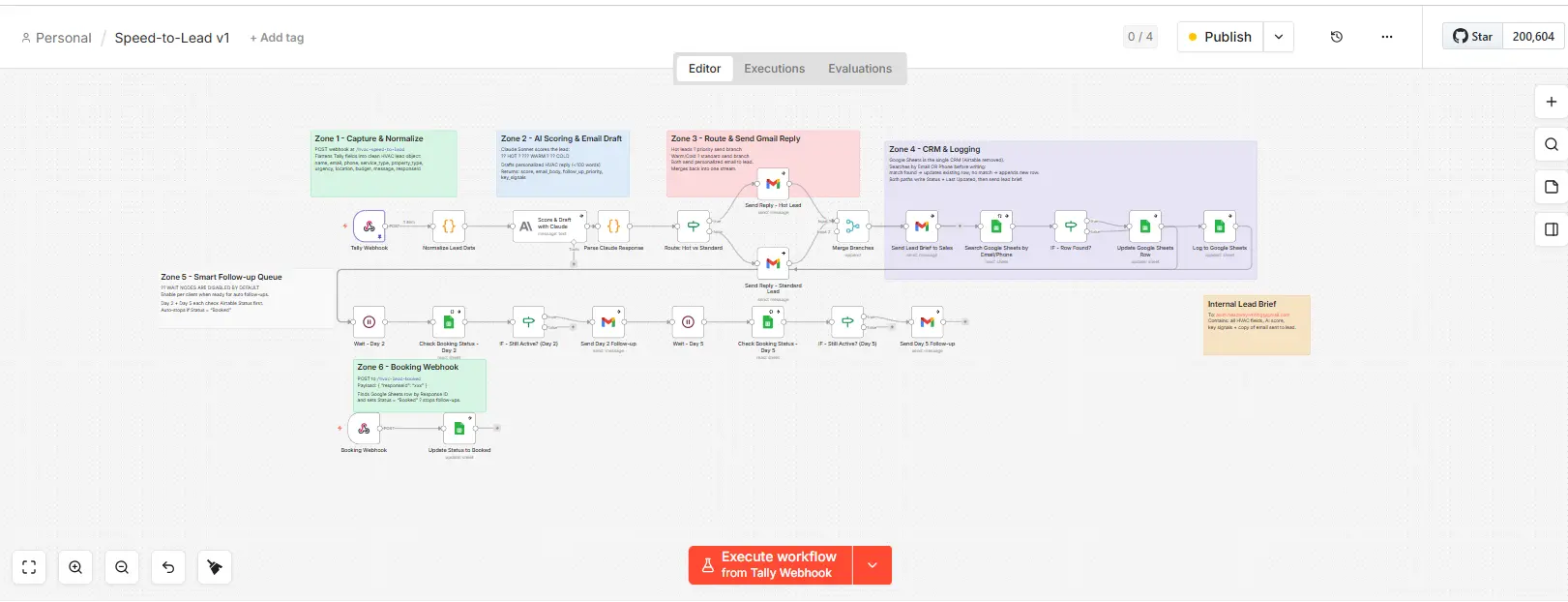
In n8n or Zapier, connect your lead source, whether that’s a website form, a Calendly booking, or a missed-call log, to your CRM through a simple login-and-authorize step.
Add a “search first” step so it checks whether that email or phone number already exists before creating a new record.
That single step stops duplicate contacts. From there, a wait step spaces out two or three follow-ups over several days, and each one checks whether the lead has replied or booked before sending the next.
2. Invoicing and Payment Reminders
Chasing unpaid invoices by hand costs you time and feels awkward.
A system that reminds people for you removes both problems, and an invoice generates the moment a job finishes, with reminder emails going out on a schedule if it stays unpaid.
You probably don’t need n8n for this one. QuickBooks and Xero both have a built-in setting for recurring invoices and automatic reminders, and you turn it on once in your invoice settings.
The exception is when your invoicing data lives outside your accounting tool, say in a booking app or a spreadsheet.
Then it’s worth building a workflow that triggers off “job marked complete,” creates the invoice through your accounting tool’s connection, and lets the tool’s native reminders take it from there.
Either way, watch for one trap: if a client pays by check, your system won’t see it, and the reminders will keep firing at someone who already paid.
3. Email Marketing Sequences
A new lead or customer needs more than one touchpoint to convert, and sending each email by hand doesn’t scale past a handful of contacts.
The fix is a signup or a purchase triggering a series of emails that go out automatically over days or weeks.
In a tool like ActiveCampaign, you build an automation starting from a trigger, like a form submission or a purchase. Drag three or four emails into a sequence with a wait time between each, say day zero, day three, day seven.
The step people skip is adding a condition that checks whether the contact already took the action you wanted, like booking a call, and exits them from the sequence if they did.
It’s a checkbox in the automation builder, not extra code, and it’s the difference between a helpful sequence and one that annoys someone who already converted.
4. Appointment Scheduling
Back-and-forth emails to find a meeting time waste your time and the other person’s.
A booking page fixes that by syncing to your calendar and blocking off availability in real time, usually paired with automated reminders.
Create an event type in Calendly, connect it to your Google or Outlook calendar with a one-click setting, and turn on Calendly’s built-in email and SMS reminders.
If more than one person takes bookings, connect each staff calendar to a shared team page using a round-robin or collective event type, so Calendly checks everyone’s availability before offering a slot.
That’s what actually stops the double-booking problem. Spend your real effort on the reminder, not the booking page. A same-day text cuts no-shows harder than any booking tool ever will.
5. Social Media Posting
Posting to five platforms by hand eats a chunk of your week for something that could run itself. Queue your content in a scheduler instead, and it posts automatically across platforms at set times.
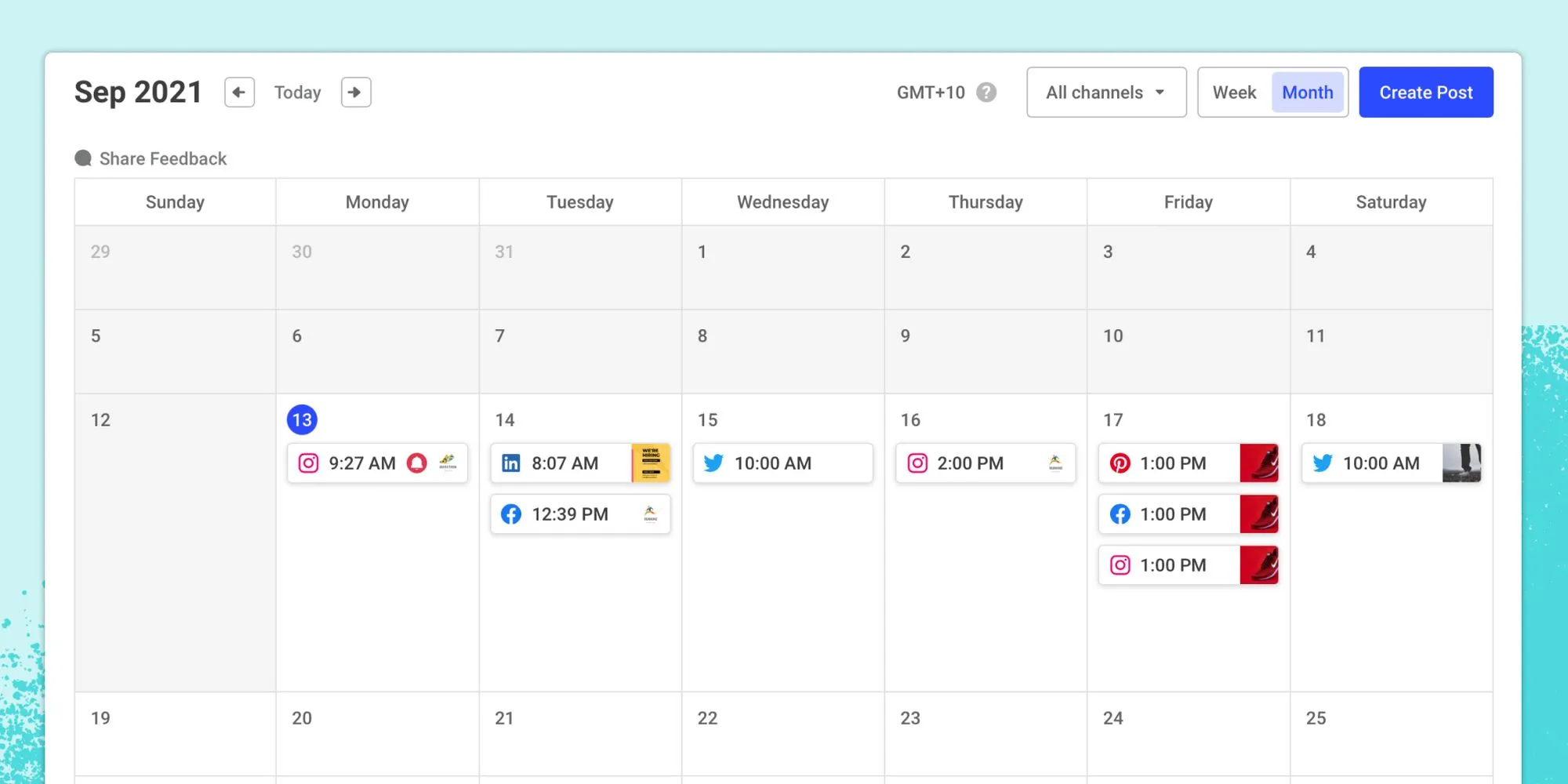
Connect each social account, Instagram, Facebook, LinkedIn, once through that platform’s official login inside Buffer or Hootsuite.
Draft posts in the shared content calendar and set a publish date and time. Most plans let you queue a week or a month of posts in one sitting.
Turn on the “preview per platform” step before scheduling, so a bad crop or a cut-off caption gets caught before it goes live, not after.
One honest note: this is the weakest return on the whole list. Automate the posting, but keep a real person answering the replies and DMs.
6. HR and Employee Onboarding
A new hire who falls through the cracks in their first week starts off confused, and it reflects on you.
An accepted offer can trigger a checklist instead, covering account setup, document collection, a welcome email, and a training schedule.
In n8n or Zapier, the trigger is usually a status change in your HR tool, like an offer marked “accepted,” or a new row added to a hiring spreadsheet.
That fires off a welcome email, a document request through an e-signature tool, and calendar invites for training, all at once. The fix for a common failure is making “done” depend on something real, like the e-signature tool’s own “document signed” notification, instead of just “email sent.”
That way the checklist only ticks when the new hire actually finishes the step, not when the email leaves your outbox.
7. Inventory Tracking and Reordering
Running out of stock costs you sales, and over-ordering ties up cash you didn’t need to spend.
Sync your stock levels from your point-of-sale or store data instead, and let crossing a set threshold trigger a reorder automatically.
Connect your POS or e-commerce platform, like Shopify or Square, to n8n or Zapier through its API.
Schedule a daily check that pulls current stock levels, then add a condition that compares each product’s quantity to your reorder threshold.
Cross it, and the workflow emails your supplier a standard order or drafts a purchase order in your accounting tool. Thresholds go stale, though, so set a recurring quarterly reminder for yourself to revisit the numbers. The workflow can’t know your season changed.
You have to tell it.
8. Customer Support and Ticket Routing
Sorting every support message by hand doesn’t scale, and slow replies cost you customers.
Incoming messages can get classified and routed to the right queue instead, or answered directly from your knowledge base, with anything unresolved escalated to a person.
In Zendesk, set up trigger rules in the admin panel that read keywords or a category field and assign each ticket to the right team.
If you add an AI layer, through n8n or Zendesk’s own AI tools, a step classifies the ticket and either drafts a reply from your knowledge base or flags it for a person. Build the escalation rule around more than missing answers.
Route to a human when the AI’s confidence score is low, or when a customer replies that the answer didn’t help, not just when no answer was found at all. Otherwise a confidently wrong answer slips through without anyone noticing.
9. Reporting and Dashboards
Copying numbers from five different tools into one report by hand is slow, and mistakes creep in.
Pull that data on a schedule instead, straight from your CRM, ad platforms, and accounting software into one sheet or dashboard.
In n8n, a scheduled trigger, say every morning, pulls data from each source app through its connection and writes it into a shared Google Sheet or dashboard.
Add a sanity-check step right after the pull: a simple comparison that flags anything more than 50% off from yesterday’s number and sends you a Slack or email alert instead of quietly updating the sheet.
Without that step, one tool changing its export format can leave you looking at wrong numbers for weeks before anyone notices.
10. Proposal and Document Generation
Rebuilding a proposal from scratch every time is slow, and copying an old one risks shipping outdated pricing.
A client’s name, line items, and pricing can pull into a template automatically instead, generating a ready-to-send document.
In PandaDoc, build one master template with merge fields for the client name, line items, and price, instead of copying an old proposal each time.
A trigger from your CRM, like a deal reaching a certain stage, or a simple form fills in those fields and generates the document automatically, with e-signature built in.
Keep one person responsible for updating the master template rather than letting teams keep their own copies. PandaDoc’s version history shows you when it was last changed, so stale pricing gets caught instead of quietly shipping in every proposal.
Small Business Automation vs Enterprise Automation
Both solve the same underlying problem, but they’re not built for the same scale. Here’s how they actually compare, side by side.
| Aspect | Small Business | Enterprise |
|---|---|---|
| Typical cost | $0–$500/mo (Zapier, Make, n8n, native SaaS features) | $50K–$500K+/yr (Salesforce Flow, UiPath, MuleSoft) |
| Setup time | Hours to days for a single workflow | Weeks to months, with IT sign-off and integration testing |
| Complexity | Point-and-click, one person can build and maintain it | Multi-system, usually run by a dedicated automation team |
| Scalability | Handles a few thousand runs a month comfortably | Built for tens of thousands of transactions a day |
| Focus | One task or one team’s bottleneck | Cross-department processes spanning sales, finance, fulfillment |
Your automation doesn’t need to look like a shrunk-down enterprise system. It needs to fix one real bottleneck fast, without months of setup or a dedicated team to babysit it.
AI-Powered Automation in 2026
The shift this year is real. Simple triggers used to run the show.
Now, AI agents can read something messy, like an email or a support ticket, decide what it needs, and act across several apps on their own, without you writing out every branch of logic in advance.
No-code tools still run the show for small businesses, though. Platforms like n8n, Zapier, and Make remain where you actually build this, since you’re configuring connectors, not writing code.
More of those connectors now carry an AI step built in, like “summarize this email” or “classify this ticket,” dropped right into a workflow you already run.
Skip the standalone AI product and add an AI step to what you already have instead: your CRM update, your support routing, your reporting. Every idea above already works this way.
What are the top 5 automation tools?
Zapier, Make, and n8n cover most connector-based automation. QuickBooks and Xero handle invoicing natively. Which combination makes sense depends on which tools your business already runs on.
One automation, done well, beats five done badly. Start with the task the checklist above pointed you to, get it working, and move on to the next once it’s actually saving you time.
That’s really what small business automation services come down to: one fixed bottleneck at a time, not everything at once.
Common Questions About Small Business Automation
What are some good automations for small businesses?
Start with lead follow-up, invoicing reminders, or appointment scheduling. All three touch revenue directly, and all three keep running in the background once you set them up.
What are some good AI automation services for small businesses?
Look for tools that add an AI step to something you already run, like classifying a support ticket or drafting a first pass at a proposal, rather than a separate AI product you have to manage on its own.
Can ChatGPT automate tasks?
Not on its own. It can draft text and summarize information, but it doesn’t connect to your other tools or trigger anything by itself. Pair it with a workflow tool like n8n, Zapier, or Make, and it becomes a real automation.