

To sync leads to my CRM automatically, connect your lead source to a workflow tool like n8n, add a check that searches for an existing match before writing anything, then branch to update that record or create a new one. This works the same whether your CRM is Google Sheets, Airtable, or HubSpot — only the search-and-write node changes. Most n8n automation for your business setups skip the duplicate check entirely, and it’s the part that quietly breaks things later.
The Trigger
- A webhook fires the instant a form is submitted, an ad platform sends a lead, or any source posts data to it — no scheduled polling delay.
The Dedupe Check (No-Code, in n8n)
- Search by email OR phone before writing anything, so a lead who skips one field still gets matched.
- Enable Always Output Data on the search node — without it, brand-new leads with zero matches silently never get logged.
Update vs. Append
- Match found: update the existing row, keep the original timestamp.
- No match: append a new row as normal.
That’s the logic. The rest of this guide shows the real automation we built and tested, a bug we hit while building it, and the exact node config you can copy into your own setup.
Why Manual Lead Entry (and Most “Automated” Syncs) Still Lose Leads
A form gets submitted. Someone on your team eventually notices, opens the CRM, and types the details in by hand. By the time that happens, the lead has cooled off, and there’s a real chance the entry gets fumbled or skipped on a busy day.
Plenty of tutorials claim to solve this. Watch a few, and you’ll notice something: they all show the happy path. A form fills out, a webhook fires, a contact appears in the CRM, and the video ends. Nobody shows what happens when the same person submits twice, when the CRM is briefly unreachable, or when a lead gets written with no one responsible for following up.
We went looking for a build that actually handles those cases. Out of 15 real tutorials, Reddit threads, and templates we reviewed while researching this post, only one even attempted duplicate handling, and it marked that feature “out of scope for now.”

Real production data: the same lead landed twice, seconds apart, before this fix existed.
What You Need to Sync Leads to My CRM Automatically
A working sync needs three things most tutorials skip: a check for existing leads before writing, a way to catch a lead that ends up with no owner, and speed. Here’s why each one matters.
A lead with no owner is a silent failure. This happens when your workflow runs successfully, writes a new row or record, and never assigns anyone to follow up. Nothing errors out. Nothing alerts you. The lead just sits there until someone happens to notice, days later, that it was never touched.
This exact problem came up repeatedly in a Reddit thread about scaling lead routing past 1,000 leads a month. Several people running real systems agreed on the same point: a workflow can finish without any errors and still leave a lead completely unassigned, and nobody notices until it’s too late to matter. Catch that before you try to build anything smarter.
Speed matters more than most people expect, and the reason is mechanical, not intuitive. The most-cited controlled study on this, a 2007 analysis by MIT Sloan researcher Dr. James Oldroyd working with InsideSales.com, tracked three years of data across six companies and over 100,000 call attempts. The finding: the odds of actually reaching a lead drop 100 times when you wait 30 minutes instead of 5. The odds of qualifying that lead drop 21 times over the same gap.
That’s not about your team being slower or faster than a competitor’s. It’s that a person’s attention to their own inquiry fades within minutes of submitting a form. A workflow that takes 15 minutes to run a “smarter” scoring model before notifying a rep is already working against a lead whose odds have collapsed before the routing decision even gets made. Instant and simple beats delayed and clever.
The last piece is portability. The exact logic in this guide, search for a match, then update or create, works the same whether your CRM is a spreadsheet, Airtable, or HubSpot. Only the node you plug in changes.
Zapier vs Make vs n8n: The Honest 2026 Comparison covers why we build these automations in n8n specifically, if you’re still choosing a platform.
Sheets vs Airtable vs HubSpot for This Use Case
Which tool to use as your CRM depends almost entirely on how many people are touching the same leads, not personal preference.
| Google Sheets | Airtable | HubSpot (Sales Hub) | |
|---|---|---|---|
| Starting price | $7/user/month (Business Starter) | Free tier available; paid plans from $20/user/month | Free CRM tier available; paid plans start around $15-20/seat/month at list price |
| Record limits | No hard cap, limited by API rate limits at high volume | 50,000 records per base on the Team plan | Scales by contact tier, not row count |
| Best fit | One or two people handling leads, no need to track “who owns this” | Once two or more people touch the same lead and you need views, relationships, or automation without full CRM cost | Once you need real pipeline stages, deal tracking, and a dedicated owner field, not just a lead log |
A Reddit thread specifically about whether Google Sheets is enough for a real estate CRM landed on the same conclusion: Sheets works fine solo, but breaks down the moment two people can touch the same lead, because a spreadsheet row has no real concept of “owned by” or “stage.” That’s exactly the gap our dedupe-and-update logic below closes, even on Sheets.
We Built and Tested This
Everything above is the theory. Here’s what we actually built, what broke while we built it, and what the sheet looked like before and after.
We added a dedupe layer to an existing lead-response automation in n8n. Before a lead ever gets written to the CRM, the workflow now searches for a matching email or phone number. Find one, and it updates that row instead of creating a new one. Find nothing, and it appends a fresh row, exactly like before.
The bug we didn’t expect. While building the search step, we hit something that wasn’t in any tutorial we reviewed. When the search finds zero matches, which happens for every brand-new lead, n8n’s default behavior is to stop the entire workflow silently. No error. No warning. The lead that should have been appended as a new row just never was.
The fix was a single setting, “Always Output Data,” turned on for the search node so it always passes something downstream, whether it found a match or not. Without that fix, this dedupe check would have broken the exact thing it was built to protect: every single new lead.
A second bug turned up after that one was fixed. The search still wasn’t finding real duplicates, even though everything in the n8n interface looked correct. The problem: n8n had quietly added an invisible line break to the end of the search text. So instead of matching “leadname@email.com”, it was matching “leadname@email.com” plus a hidden extra character, which matches nothing. The interface showed no sign of this. It only turned up when we pulled the workflow’s raw saved data through the API and looked at the actual text, character by character.
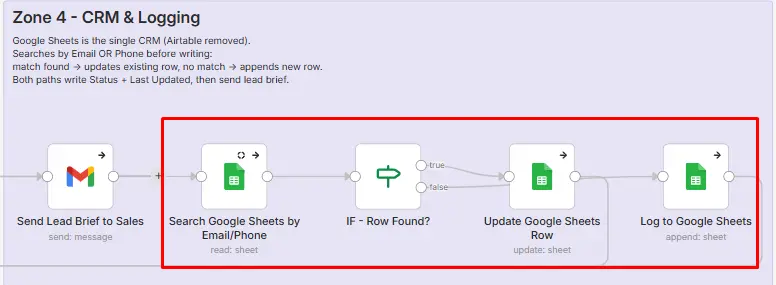
The search step correctly finding the existing row after both fixes went in.
Here’s the same lead, “Milestone Test One,” submitted twice after both fixes went in. Still one row. The original submission time stayed exactly where it was, and a separate “Last Updated” column picked up the second submission time instead.

Same lead submitted twice. One row. Timestamp preserved, Last Updated refreshed.
| Design decision | Real problem it solves |
|---|---|
| Google Sheets for this build | Simplest to demonstrate live. Same logic works with Airtable or HubSpot, just swap the search-and-write node |
| Search by email OR phone, not email alone | Real leads sometimes skip the email field entirely |
| Timestamp preserved, Last Updated added separately | Keeps the true first-contact time visible even after a resubmission updates the row |
| Instant webhook trigger, no batching | The MIT study above: minutes matter more than smarter routing |
Worth knowing before you copy this: the search-then-update pattern has a real limitation at higher volume. If the same lead submits twice within roughly the same second, both requests can run their search step before either one writes its result, and both could see “no match” and both append. Google Sheets has no row-level locking to prevent this. At the lead volumes most small businesses see, this window is small enough to rarely matter, but it’s honest to name it rather than claim the fix is bulletproof at any scale.
How to Build This Yourself
Three pieces make this work: a trigger, a search-before-write check, and branching logic for update versus append.
The trigger. A webhook fires the instant a form gets submitted, an ad platform sends a lead, or any source posts data to it. This is different from a scheduled trigger that checks for new leads every few minutes, which reintroduces the exact delay the MIT study above says costs you contact odds.
The dedupe check. Before writing anything, search your CRM for a matching email or phone number. Here’s the actual node configuration from our build, with credentials and IDs stripped out so you can drop it into your own workflow:
{
  "parameters": {
    "operation": "search",
    "filtersUI": {
      "values": [
        { "lookupColumn": "Email", "lookupValue": "={{ $json.email }}" },
        { "lookupColumn": "Phone", "lookupValue": "={{ $json.phone }}" }
      ]
    },
    "options": { "combineFilters": "OR" }
  },
  "alwaysOutputData": true
}
Two details matter here that aren’t obvious from just reading the config. First, combineFilters has to be set to OR, not the default, or the search will only match a lead whose email and phone both match exactly. Second, alwaysOutputData: true is the fix for the silent-halt bug described above. Skip either one, and the check either misses real duplicates or breaks new-lead handling entirely.
Update versus append. A branch checks whether the search found a row. Found one, update it with the new information, but leave the original timestamp alone so you can still see when the lead first came in. Found nothing, append a new row as normal.
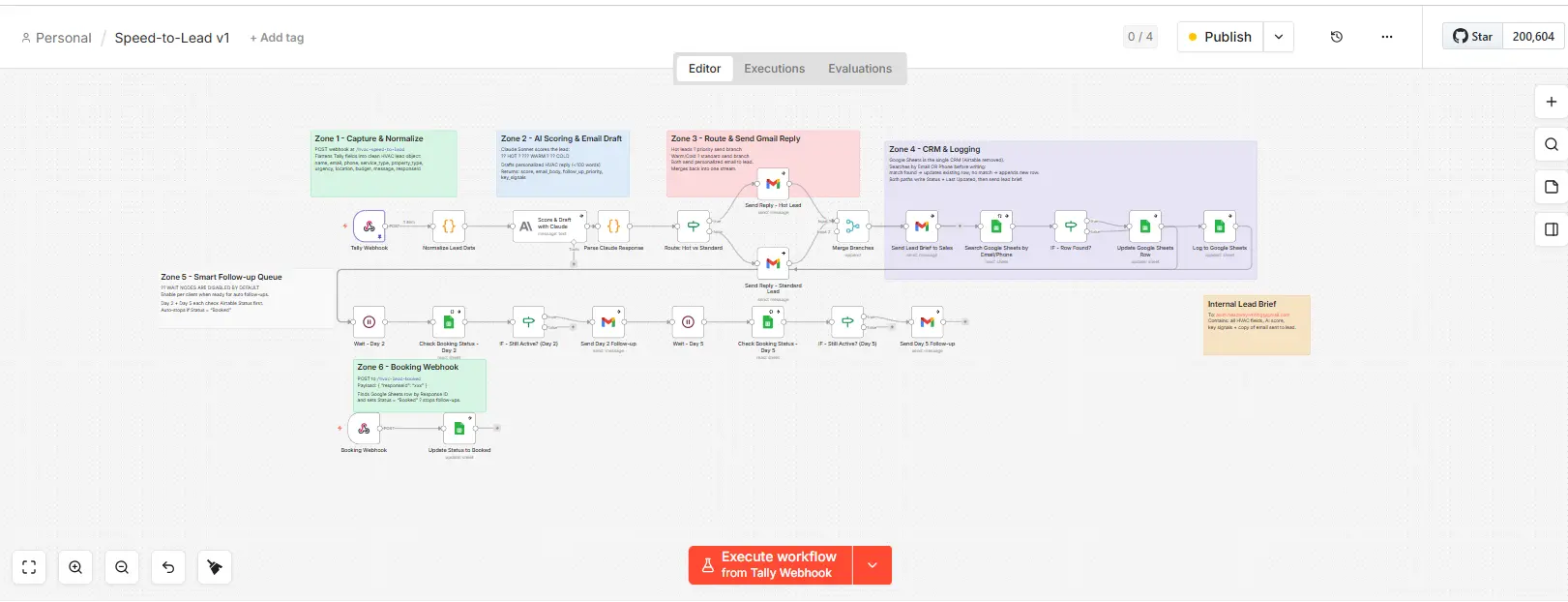
The CRM and logging zone of the live workflow: search, branch, then update or log.
Worth adding on top of this: a check that confirms every lead written to your CRM has an owner assigned, and fires an alert if it doesn’t. We haven’t built this piece into the live workflow yet, but it’s the direct fix for the “silent failure” problem covered earlier, and it’s the piece missing from every build we reviewed. If you’re implementing this yourself, it’s worth the extra 15 minutes.
Want the whole thing, not just the snippet above? Here’s the full sanitized workflow, ready to import.
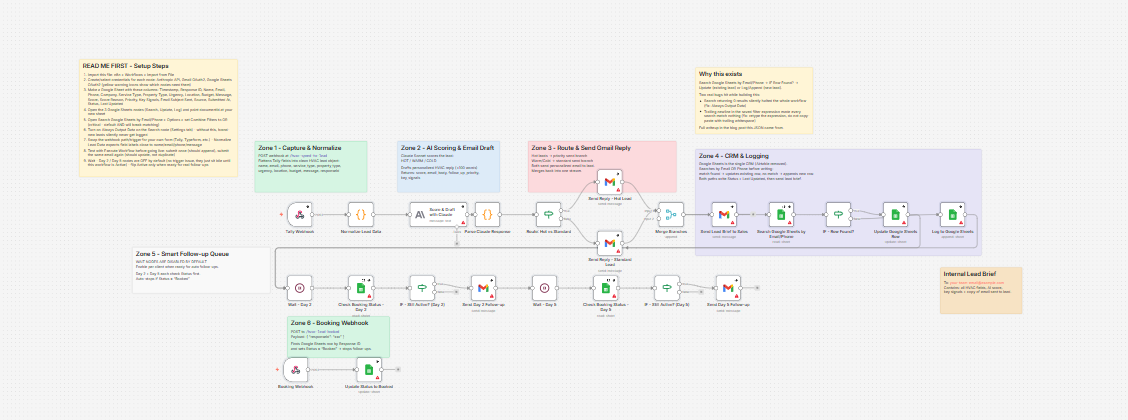
The full import file, with step-by-step setup notes built right into the canvas.
Download the full sanitized workflow (JSON) — every node from the build above, credentials and IDs stripped out, with a setup-steps sticky note and a bug-explainer sticky note built into the canvas so you’re not starting from scratch.
Making It Work With Your CRM (Not Just Ours)
This build uses Google Sheets because it’s the easiest to show working. The logic underneath doesn’t care which CRM sits on the other end.
Swapping in Airtable: replace the search step with Airtable’s own search-by-formula operation, matched on email or phone the same way, and swap the update/append steps for Airtable’s update and create operations.
Swapping in HubSpot: HubSpot’s contact search API supports the same email/phone lookup, and its contact create/update operations map directly onto the same update-versus-append branch. GoHighLevel and Zapier both support equivalent search-then-write patterns if you’re building this outside n8n.
The dedupe logic, search first, branch on the result, only changes which node does the searching and writing. Whichever CRM you land on, this is how you sync leads to my CRM automatically without the duplicate-row problem this whole guide started with.
FAQ
What happens if the same lead submits the form twice?
The workflow searches for an existing match by email or phone before writing anything. If it finds one, it updates that record instead of creating a second one, so your CRM stays at one row per lead.
How do you know a lead didn’t fall through the cracks?
The dedupe logic itself doesn’t catch this. What catches it is a separate check on top: confirm every new CRM record has an owner assigned, and alert someone if it doesn’t. Worth adding once the dedupe layer above is working.
Do I need HubSpot or Airtable, or can I start with just Google Sheets?
Google Sheets works fine if it’s one or two people handling leads and you don’t need a formal “owned by” or pipeline stage. Once two or more people touch the same lead regularly, Airtable or HubSpot start to earn their cost.
What’s the difference between real-time sync and a scheduled sync?
A webhook-triggered sync fires the instant a lead comes in. A scheduled sync checks for new leads on a timer, which adds a delay equal to however long that timer is set to, and every minute of delay costs contact odds according to the MIT study above.
How fast should a new lead actually get a response?
As close to instant as possible. The steepest drop in contact odds happens in the first several minutes after someone submits a form, not the first hour.
Key Takeaways
- A working lead sync searches for an existing match before writing, so the same person submitting twice creates one record, not two.
- The biggest silent failure isn’t a workflow error, it’s a lead written with no one assigned to follow up. Build a check for it.
- Speed beats smart routing. The odds of reaching a lead drop 100 times between 5 and 30 minutes, according to the MIT/InsideSales study.
- The dedupe logic works with Google Sheets, Airtable, or HubSpot. Only the node changes, not the approach.
- Real builds hit real bugs. A silent-halt-on-zero-results bug and a hidden trailing character both broke this automation during testing, and both are fixable in minutes once you know to look for them.
Pingback: How to Stop Losing Leads: 7 Leaks Costing You Money