

Booking a client shouldn’t take five messages back and forth. If your business still handles scheduling by phone or email, you already know the cost: missed calls, slow replies, and appointments that fall through the cracks before anyone notices.
This guide covers how to automate appointment booking the right way. A form, a chatbot, or a voice agent takes the request, checks a calendar, and confirms a time. It sounds simple, and for the happy path, it is. The part nobody talks about is what happens when something goes wrong quietly, without anyone noticing until a client shows up to a slot that was never really booked.
We build these systems for a living through our n8n automation services for small businesses, and the reliability gap is the thing most guides skip entirely. This post covers both sides: how to set up the automation, and how to stop it from lying to you when it fails.
What automated appointment booking actually means
Automated appointment booking is a system that lets a client pick and confirm a meeting time without a person on your end typing a reply. The system runs real-time calendar sync to check your real calendar, offers open slots through self-service booking, books the one the client picks, and sends confirmations and reminders on its own.
That definition covers the marketing. It leaves out the part that decides whether the system is actually trustworthy.
The core building blocks of a booking automation
Every working setup, no matter which tool runs it, needs the same five pieces.
| Building block | What it does | Example tool |
|---|---|---|
| Self-service booking link | Lets the client pick a time without calling | A form, chat widget, or voice agent |
| Real-time calendar sync | Reads actual availability before offering slots | Google Calendar, Outlook |
| Automated reminders | Cuts no-shows by nudging the client before the meeting | Email or SMS, sent hours ahead |
| Confirmation messaging | Tells the client, in writing, exactly what they booked | Email sent right after booking |
| Waitlist / no-show handling | Fills a cancelled slot instead of leaving it empty | Auto-notify the next person in line |
Miss any one of these and the system feels incomplete. Get all five working and most guides call it done. That’s the mistake.
How businesses are actually automating this today
Small teams usually reach for a ready-made platform first. Calendly, Square Appointments, Acuity Scheduling, and Zoho Bookings all handle the five building blocks above out of the box, with almost no setup time.
Marketing-heavy businesses often build reminders directly into their existing email platform. Klaviyo, for example, lets you trigger a booking confirmation and a reminder flow the moment someone schedules, without touching a separate scheduling tool.
Businesses that want more control, or that need the booking flow to talk to a CRM, a spreadsheet, or a phone system, build a custom workflow instead. n8n, Zapier, and Make.com connect a form or an AI voice agent (tools like VAPI, Retell, or Bland.ai) straight to a calendar, with room to add custom logic a ready-made platform won’t let you touch. GoHighLevel users do the same thing inside their CRM’s own workflow builder.
Both paths solve the booking half of the problem. Neither solves the failure half unless you build for it on purpose.
The failure mode nobody talks about: silent success
Here’s the part that almost never makes it into a tutorial. When a booking automation reports “success,” that message often confirms the request arrived, not that the appointment actually got recorded.
This isn’t a fluke or a bug specific to any one tool. Stripe’s own webhook documentation tells developers to return a success response before the real work finishes: “Your endpoint must quickly return a successful status code (2xx) prior to any complex logic that could cause a timeout… you must return a 200 response before updating a customer’s invoice as paid in your accounting system.” That’s the standard, recommended pattern for webhooks generally, and appointment booking automations run on the exact same pattern.
Translate that to a calendar: the client sees “you’re booked in,” the request was received, but the row that should have saved to your sheet or CRM can still fail seconds later. Nothing alerts anyone. The client walks away confident. Your business has no record.
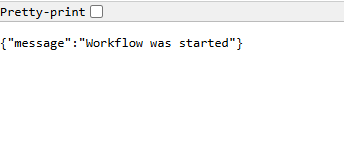
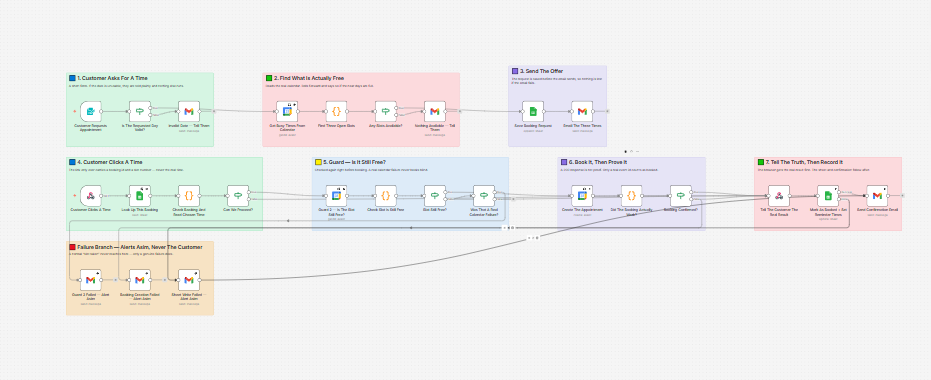
We hit this exact failure while building and testing our own booking automation. A header cell in a connected spreadsheet had a stray trailing space, invisible in the sheet’s normal view. The booking automation created a real calendar event and told the client, correctly, that they were booked. The step that should have saved that booking to our records failed at the same moment, silently, with no error shown anywhere. The client was telling the truth. Our system wasn’t.
The 3 guardrails a reliable booking automation needs
Fixing this isn’t complicated. It just needs to be designed in from the start, not patched on afterward.
Guard 1: stop the same link from double-booking
Every confirmation link should check whether that booking ID has already been used before doing anything else. Without this check, a client who clicks their confirmation link twice, or refreshes the page, can create two appointments from one request.
Guard 2: recheck availability the instant before confirming
A slot that was free when you offered it can get taken by someone else before the client clicks it. This is a well-known problem in software generally, not something unique to calendars. OWASP, the security standards body, documents it as a “check-then-act” race condition, also called Time-of-Check to Time-of-Use (TOCTOU): two requests both pass an availability check before either one finishes writing its result. The fix is checking availability again, right before the write, not just once at the start.
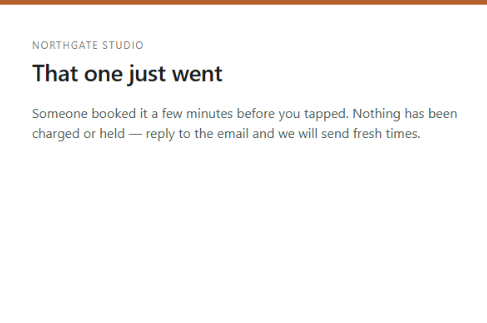
Guard 3: never respond “success” before the booking is actually verified
This is the guard that closes the Stripe-pattern gap above. Don’t treat a 200 response from your calendar API as proof of a booking. Wait for a real, returned event ID. Only then tell the client they’re confirmed, and only then write the record to your system.
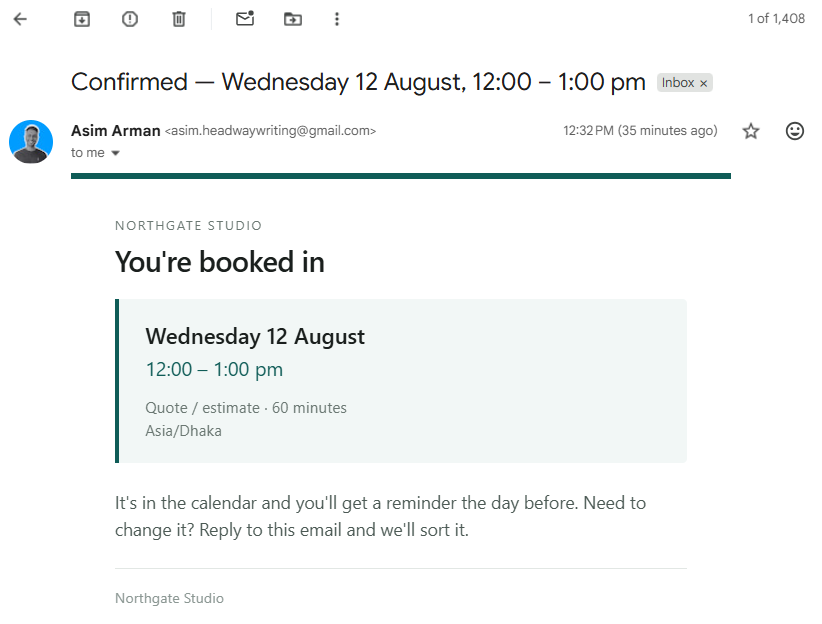
How to automate appointment booking: step by step
- Take the request. A form, chat widget, or voice agent collects name, service, and a preferred time.
- Check the calendar for real availability. Pull actual busy times, not a cached guess.
- Offer specific times, and save the request before sending it. If the confirmation email fails to send, the request itself isn’t lost.
- Re-verify availability the moment the client confirms. This is Guard 2, and it’s the step most builds skip.
- Only report success once a real event ID exists. This is Guard 3.
- Record the result somewhere durable, separate from the calendar itself. A spreadsheet, CRM, or database row that survives even if the calendar API has a bad moment.
Reminders that survive a restart
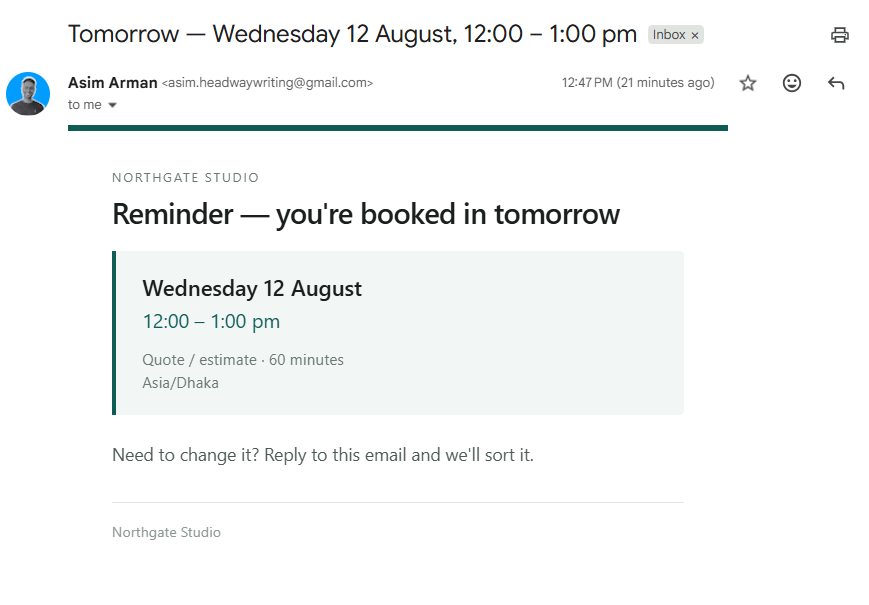
An appointment reminder system is the single biggest lever you have to reduce no-shows, but most guides tell you to add a delay step that waits a set number of hours, then sends a reminder. That works fine until your automation platform restarts or redeploys while a reminder is mid-wait.
n8n’s own documentation confirms why: wait times under 65 seconds run entirely in memory, not saved to the database. If the process restarts during that window, “the process continues to run and the execution resumes after the specified interval passes” only if the process itself survives. A restart mid-wait simply loses that execution, with nothing to show it ever happened. Longer waits get saved to the database, which is safer, but not foolproof either.
The safer pattern to automate appointment reminders: don’t wait at all. Store the exact time a reminder is due as a field on the booking record, and check for due reminders on a regular schedule, once an hour for example. A restart can’t lose a stored due-date the way it can lose a wait step sitting in memory.
No-code platform vs a custom workflow: which one to use
| Ready-made platform (Calendly, Square, Klaviyo flows) | Custom workflow (n8n, Zapier, Make.com) | |
|---|---|---|
| Setup time | Minutes | Hours to days |
| Cost | Monthly subscription, scales with seats | Build cost once, then hosting only |
| Guardrails above | Built in, but not adjustable | You control exactly how each one works |
| Connects to your CRM/sheet | Only if it has a native integration | Connects to almost anything with an API |
| Best for | Simple booking with no custom logic needed | Businesses that need the booking flow tied into other systems |
If your booking needs are simple and a native integration already exists, a ready-made platform gets you running fastest. The moment you need the three guardrails above working exactly your way, or need the booking flow to feed a CRM a ready-made tool doesn’t talk to, a custom workflow earns its setup time back.
Common mistakes that cause no-shows and double-bookings
- Trusting the calendar sync without a second check. Slots go stale between “offered” and “confirmed.”
- Sending confirmation before the booking is actually saved. The client’s confidence doesn’t mean your record exists.
- Using a long wait step for reminders. It can silently vanish on a restart.
- Letting the same link get clicked twice. Without Guard 1, that’s two bookings from one request.
- Storing the appointment only in the calendar, nowhere else. One point of failure, no backup record.
FAQ
What is the best software for appointment scheduling?
It depends on how much custom logic you need. Calendly and Acuity Scheduling cover most straightforward booking needs. Businesses that need the booking flow tied into a CRM or custom reminder logic usually outgrow a ready-made platform and move to a custom workflow.
How do I create an appointment booking system?
This is the short version of how to automate appointment booking: start with the five building blocks: a booking link, real-time calendar sync, reminders, confirmations, and waitlist handling. Then add the three guardrails covered above so the system stays reliable when something goes wrong, not just when everything goes right.
Does Office 365 have a scheduling tool?
Yes. Microsoft Bookings, included with many Microsoft 365 business plans, handles self-service scheduling and syncs with Outlook calendars.
Is there a free appointment scheduling tool?
Several platforms, including Calendly and Square Appointments, offer free tiers for a single user with basic scheduling. Free tiers usually cap the number of event types or drop advanced features like SMS reminders.
The bottom line
That’s how to automate appointment booking without it quietly failing on you. A booking automation that only works when nothing goes wrong isn’t actually automated, it’s just untested. The five building blocks get you a working demo. The three guardrails are what turn that demo into something you can trust with real clients.
Build the check, not just the confirmation.